
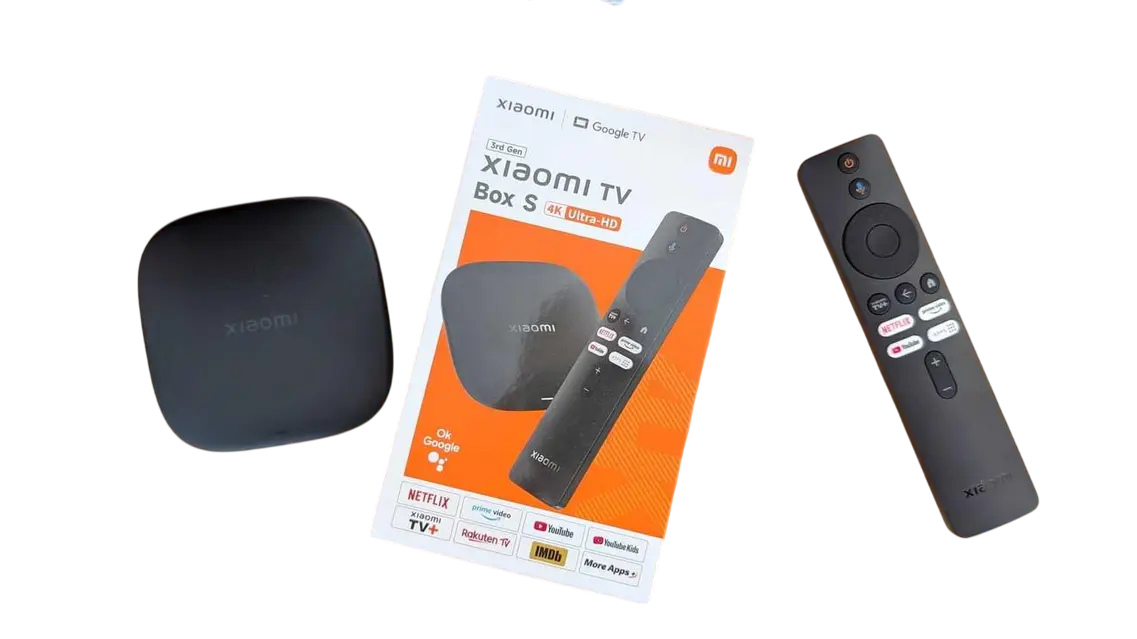
The new Xiaomi Mi Box S 3rd Gen 4K comes with changes that make it harder to access and use the Google Play Store. This has caused frustration for many users who want to install apps like Kodi and Downloader. Here’s a simple step-by-step guide to manually install them using a USB stick.
Step 1: Download the APK Files
First, download the necessary APK files on your computer:
-
Downloader APK 👉 Downloader by AFTVNews
-
Kodi APK (Omega 21.1) 👉 Kodi Omega 21.1 APK
Transfer both files to a USB stick.
Step 2: Insert USB into Xiaomi Box
Plug the USB stick into the Xiaomi Mi Box S 3rd Gen. The system will automatically detect it and show you the APK files.
Step 3: Install Downloader (First)
It is crucial to install Downloader first.
-
Open the Downloader APK file.
-
You will see a warning about installing from unknown sources.
-
Grant the necessary permissions: install from unknown sources and file access.
-
Complete the installation.
Once installed, open Downloader and try browsing the internet to make sure it works from menu button Browse.
⚠️ If Downloader cannot access the internet:
You probably denied some of the required permissions. In this case, you’ll need to perform a factory reset on the Xiaomi Box and start over.
Step 4: Install Kodi
After confirming Downloader works, move on to Kodi:
-
Open the Kodi APK file from the USB stick.
-
Install it normally.
-
Grant all requested permissions.
Final Step: Done!
After completing these steps, you will have:
✅ Downloader fully working to fetch other apps.
✅ Kodi successfully installed and ready to use.
This way, you can fully enjoy the new Xiaomi TV Box S 3rd Gen 4k, even without relying on the Google Play Store.
